#Step 1: Open the Instagram App
To begin the process of changing your Instagram password, you need to open the Instagram app on your mobile device. Locate the Instagram icon on your home screen or app drawer, and tap on it to launch the app.
#Step 2: Navigate to the Settings Menu
You must enter the settings menu after starting the Instagram app. Click on your profile icon in the lower right corner of the app to get started. You will then be sent to your profile page.
Three horizontal lines can be found in your profile’s upper right corner. To access the side menu, tap on these lines. The “Settings” option can be found by navigating down the menu and tapping it.
#Step 3: Change Your Password
After accessing the settings menu, you will need to navigate to the password change section. In the settings menu, scroll down until you find the “Security” option.
Tap on “Security” to proceed. Within the Security section, you will see several options related to account security. Look for the “Password” option and tap on it.
#Step 4: Enter the Current and New Password
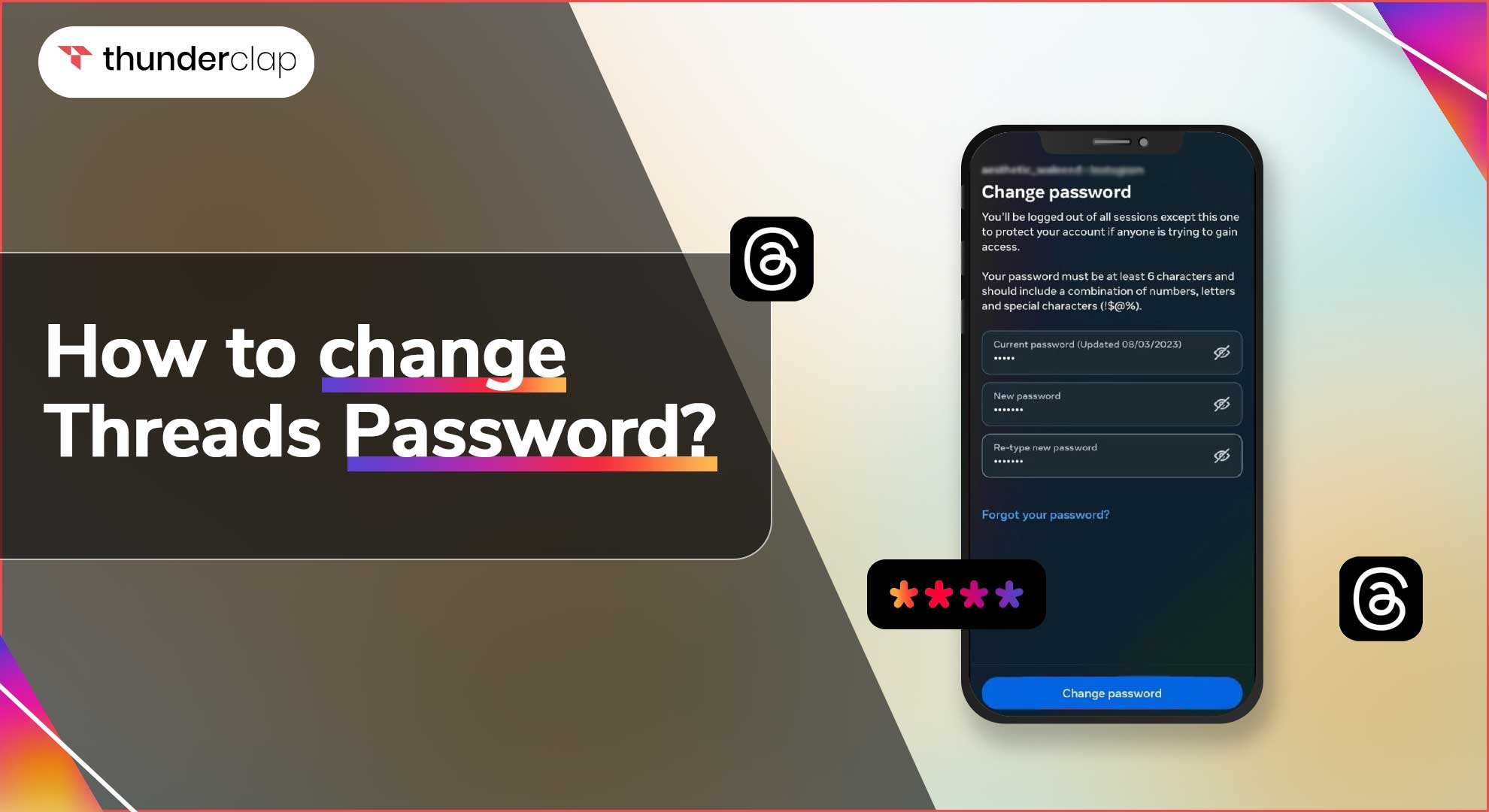
In this step, you will be prompted to enter both your current password and your new desired password. Start by entering your current password for verification purposes.
This ensures that only authorized users can make changes to the account. Once you have entered your current password, tap on the “Next” button to proceed.
You will see fields to enter your new password on the following screen. Choose a strong and unique password that matches the app’s security requirements.
A strong password often consists of a combination of uppercase and lowercase letters, numbers, and special characters. Avoid using terms or passwords that are easily guessed.
Your new password is hidden for security reasons when you type it in. To verify the accuracy, retype the new password in the confirmation form. After you’ve entered and confirmed your new password, click the “Save” or “Done” button to continue.

 Written By Alexander Noah
  0 Comments
  Publish Date : December 26, 2025
  4 min read
  Why Changing Your Thread's Password is Important?
 Lucas Dupont
 26th Dec